Getting access
Access is granted, not self-served. ADRS Marine approves a company before anyone from it can register, which is why signing up starts with an email address rather than a form.
Two kinds of account
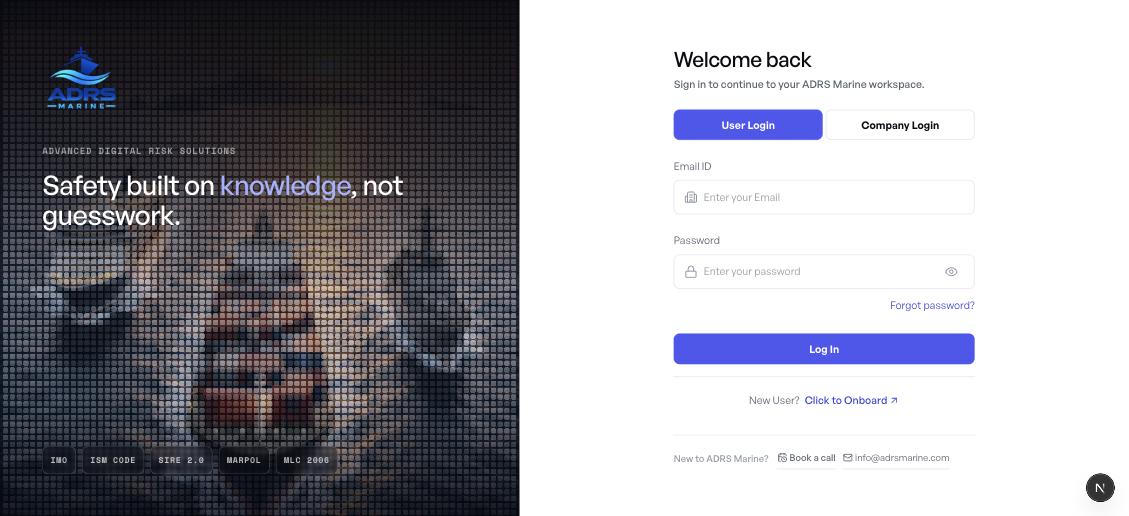
The sign-in screen has two tabs, and choosing the wrong one is the most common reason a correct password appears to fail.
| Tab | Who uses it |
|---|---|
| Company Login | The master account created during company onboarding. Signs in with the company master ID. |
| User Login | Everyone else — colleagues who joined by naming the company. Signs in with their own email address. |
Forgotten password
Forgot password? on the sign-in screen runs a three-step reset:
- Enter your emailThe address on the account — the same one you sign in with.
- Enter the codeA verification code is emailed to it. Codes are short-lived, so request a fresh one rather than reusing an older email.
- Set a new passwordYou are signed in afterwards.
If nothing arrives, check the address and your spam folder. If it still does not come, contact support@adrsmarine.com — an administrator cannot set your password for you.
Why there is no open sign-up
ADRS Marine keeps a register of the companies it holds an agreement with. Onboarding is checked against it. This means a competitor cannot create an account to look around, and it means the company name on your reports is the one on the agreement rather than whatever someone typed.
Registering a company
The person doing this is the master user — the first account, and the one that configures everything else.
- Go to the onboarding screenFrom the sign-in page, choose Click to Onboard, then the company tab.
- Enter the company master emailThis is the address ADRS Marine holds on the agreement. Nothing else is asked for yet.
- The registry is checkedIf the address is recognised, the company name fills in automatically and the rest of the form appears.
- Complete the profileRegistration number, location, registered address, an optional logo, and the master user ID and password.
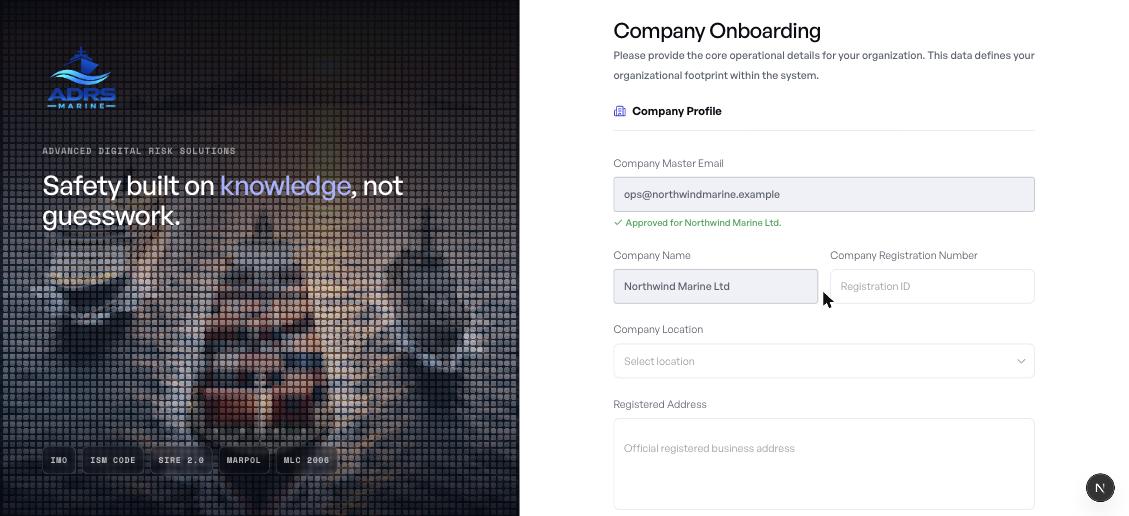
The company name and email are filled from the registry and are read-only. They identify the company on every report you will ever export, so they are not the applicant's to change.
If the email is not recognised
You will be told the address is not approved yet, and given a way to reach ADRS Marine directly.
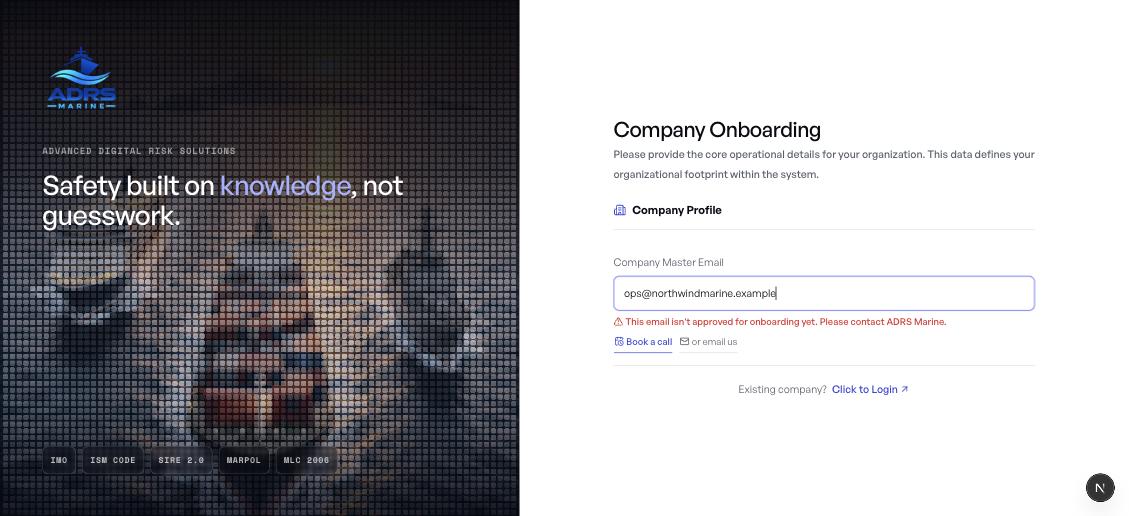
This normally means one of three things: the agreement is not yet in place, a different address was registered, or there is a typo. Booking a call resolves it fastest.
Joining an existing company
Colleagues do not need the master email. They register by naming the company.
- Choose the user tab on the onboarding screen
- Type the company nameCapitalisation does not matter; the registered spelling is what gets stored.
- Fill in name, email and passwordThese appear once the company is confirmed.
- Wait for approvalThe account is created as Pending. A company admin approves it and sets the role.
Messages you might see
| Message | What it means |
|---|---|
| We couldn't find that company | The name is not on the register. Check the spelling with your administrator. |
| This company hasn't finished setting up yet | The company is approved but nobody has completed company onboarding. Your administrator must do that first. |
| More than one company is registered under this name | Two organisations share a name. Contact ADRS Marine so the right one can be identified. |
New accounts stay pending until an administrator approves them. Nobody gains access to your assessments automatically.