Reports & export
The report is what leaves the platform — for a client, an auditor, a port authority or your own records.
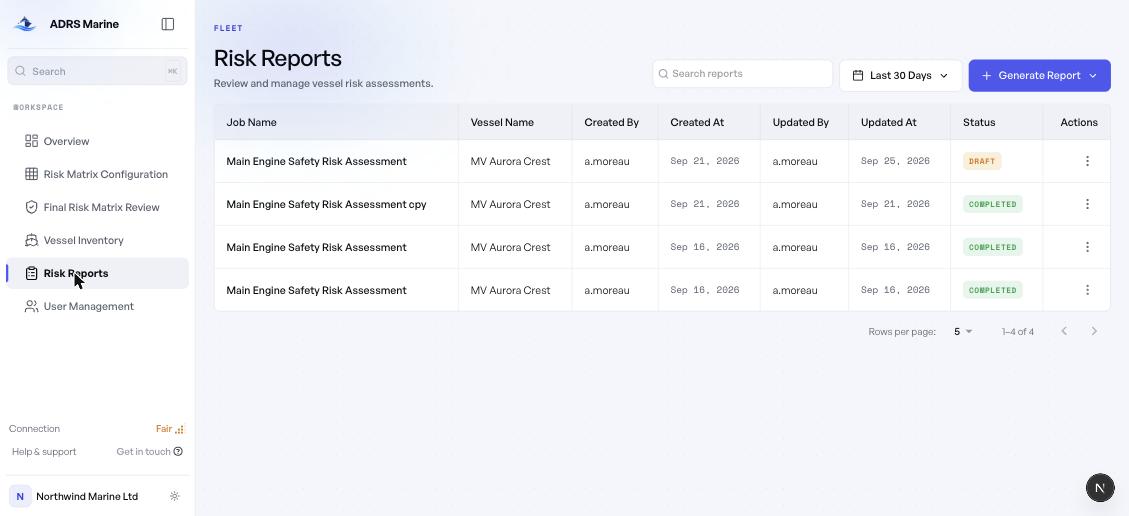
Finding a report
Search matches job name, vessel, author and status. The date control narrows by age — the last 7, 30 or 90 days, or all time. Clicking a row opens the report.
Status
| Status | Meaning |
|---|---|
| Draft | Started but not finished. Some consequence still lacks a mitigation or a residual score. |
| Completed | Every consequence has a mitigation and both scores. The report can be exported. |
What the row menu does
Every row carries a menu. What it offers depends on your role.
| Action | Effect | Who |
|---|---|---|
| View | Opens the assessment read-only. | Everyone |
| Edit | Opens the four-step wizard to change it. | Company admin, Editor |
| Delete | Removes the assessment. | Company admin, Editor |
| Opens the print preview. | Everyone |
There is no archive and no restore. Deleting an assessment removes it and its scores from the fleet totals on the overview. You are asked to confirm first — read the job name in that dialog before agreeing, because the menu belongs to the row you opened it from.
Printing and exporting
Use the row menu and choose Print. The report opens as a preview showing exactly what will be printed: your company name and logo, the vessel's identity, and every job step, hazard, consequence, mitigation and score.
- Print raises your browser's print dialog.
- Open in new tab keeps the report open to read or save.
To keep a PDF, print and choose Save as PDF as the destination — that is your browser’s own save, so the file lands wherever you normally save downloads.
The full assessment tree with initial and residual scores side by side, so a reader can see what the mitigations changed — which is the question most auditors are actually asking.